
Analysis · App Store and mobile marketing
App Store: the header and search become campaign spaces
Since 5 October 2026, Apple lets brands show an image or a video of their choice at the top of the product page and in search results. Combined with custom product pages and their keywords, these visuals turn a banking app's store listing into a real campaign medium.
- Published 6 October 2026
- By Mehdi Najeddine
- 8 min read
Key takeaways
A dedicated image or video can now replace the screenshots in search results, and open the product page.
Up to 70 custom product pages, each with its own keywords: one search intent, one page, one visual.
Visuals are reviewed outside app updates: campaign timing no longer depends on releases.
For a bank or an insurer, every visual is still a communication about a financial product: it goes through compliance.
- the format of the product page header visual (3840 × 1646 px)
- 21:9
- the format of the visual shown in search results
- 3:2
- custom product pages per app, each of which can have keywords
- 70
- video length, looping and muted by default
- 5–30 s
What changes
In search, one visual replaces the screenshots
Until now, a search result showed the icon, the name and up to three screenshots. For a banking app, that often meant three account dashboards that look alike from one bank to the next.
Since 5 October 2026, a brand can show a dedicated image or video instead, designed like a campaign visual, plus another visual at the top of its product page. Apple presents these placements for iOS 27 and iPadOS 27.
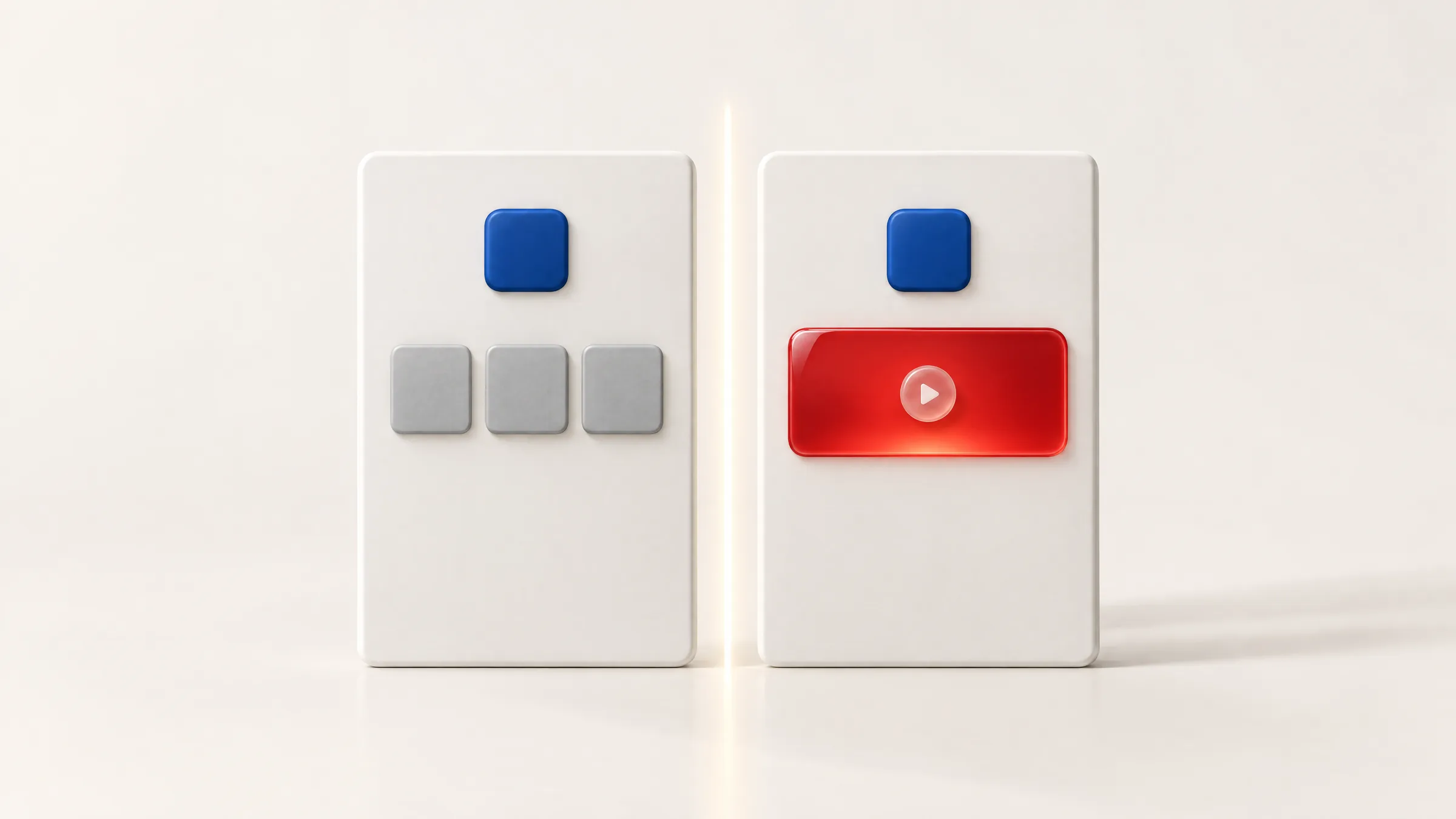
AI-generated illustration (GPT Image 2.5), based on Apple's description (WWDC26, “Enhance your presence on the App Store”).
Formats
Two placements, two formats to produce
Product page header · 21:9
- Image: 3840 × 1646 px, JPEG or PNG, no transparency
- Video: 3840 × 1646 px, 5 to 30 seconds, 30 or 60 fps, MOV, M4V or MP4
- Muted by default, the user can turn sound on; plays in a loop
Search results · 3:2
- Image: from 1920 × 1280 to 3840 × 2560 px, JPEG or PNG, no transparency
- Video: same dimensions, 5 to 30 seconds, 30 or 60 fps
- Always muted, plays in a loop
In-app events use these media too: a 16:9 card and a 9:16 detail page, with videos of 15 to 30 seconds.
Custom product pages
One page and one visual per search intent
Custom product pages are not new: they present the same app with other screenshots, other text and other visuals depending on the campaign. Since 29 October 2025, an app can publish up to 70 of them, and each page can be assigned keywords. It then appears in search results for those keywords, instead of the default page.
The new visuals work on these pages too. Apple sums it up as showing a tailored visual for different search keywords. The logic becomes: one intent, one page, one visual.
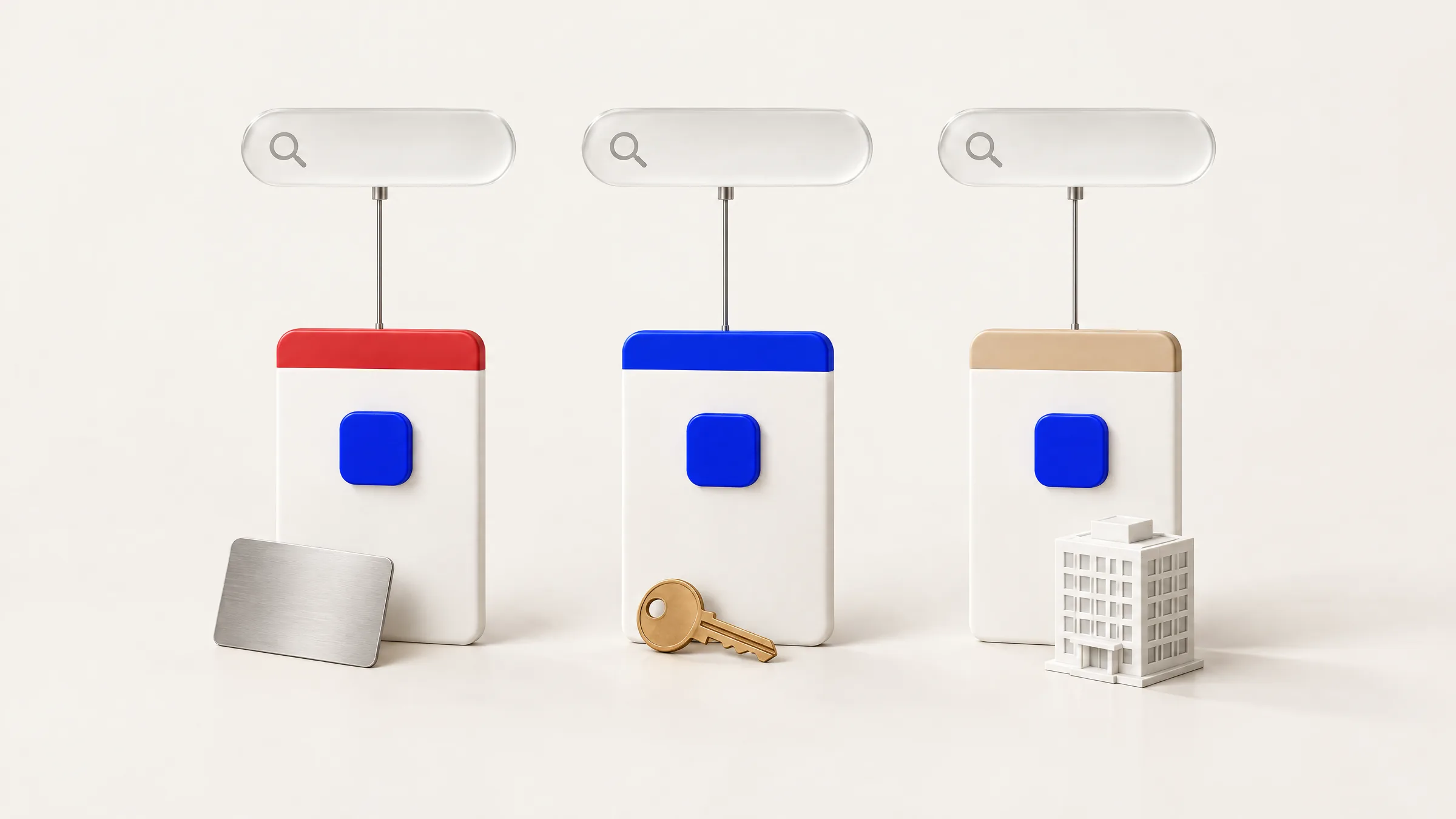
AI-generated illustration (GPT Image 2.5).
| Search | Custom page | Header visual | Landing in the app |
|---|---|---|---|
| Searchopen an account | Custom pageOpen an account online | Header visualA customer opening an account from home | Landing in the appAccount opening journey |
| Searchmortgage | Custom pageMortgages | Header visualA house, keys in hand | Landing in the appMortgage simulator |
| Searchbank card | Custom pageCards and mobile payment | Header visualA premium card, a contactless payment | Landing in the appCard ordering |
| Searchcar insurance | Custom pageCar insurance | Header visualA car on a coastal road | Landing in the appCar insurance quote |
Illustrative example by VOID. Linking to a specific app screen uses a deep link set on the custom product page.
Asset Library
Visuals no longer depend on app updates
The Asset Library brings screenshots, app previews and creative assets together, in App Store Connect. Visuals are submitted for Apple's review independently of a new app version, and an approved visual can be used in the header and in search without another review.
A preview shows the result before publication: iPhone and iPad, orientations, languages and Dark Mode. Seasonal visuals can be prepared in advance, and Apple points out the value of coordinating them with an Apple Ads campaign.
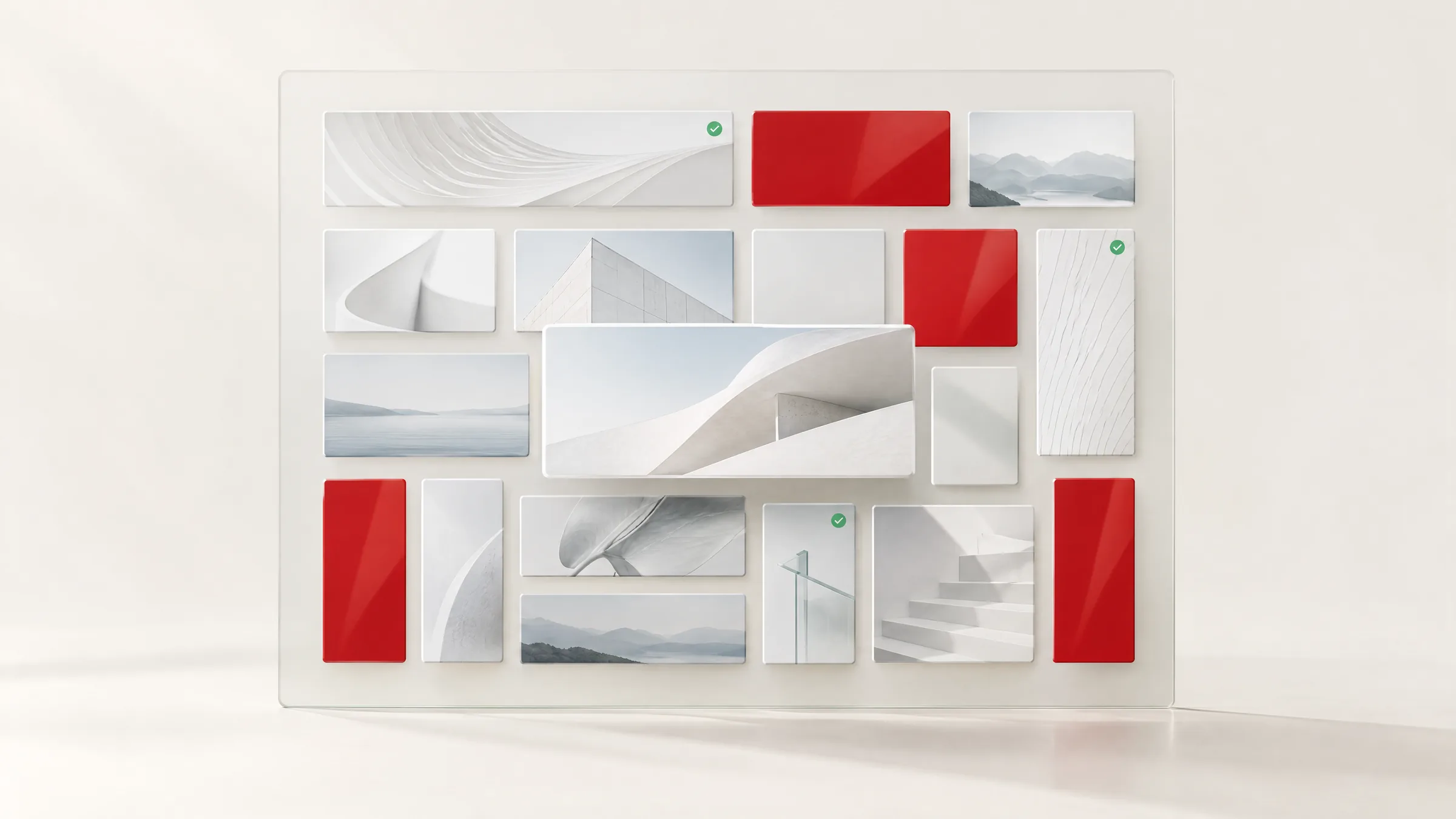
AI-generated illustration (GPT Image 2.5).
Our view
What it changes for banks and large companies
The points below are our analysis, not announcements by Apple.
The App Store listing extends the campaign
The visual seen on social media, in display ads or in Apple Ads can now sit at the top of the product page: continuity between the ad and the download becomes something you can manage.Search becomes a brand space
On contested queries such as “online bank” or “loan”, the result no longer depends only on the icon and screenshots, but on a visual designed to convince.ASO and creative work together
Keywords, custom pages and visuals form a single plan. Whoever picks the keywords must also brief the visuals.Marketing takes back control of its calendar
Visuals are reviewed outside app updates: seasonal campaigns no longer wait for a new version.Testing becomes continuous
Visuals work with product page optimization: you can test several visuals and keep the one that converts best.Compliance enters the loop earlier
Every visual is a communication about a financial product. Like your other campaigns, it goes through your legal and compliance teams before being submitted to Apple.
Rules
What Apple rejects, what Apple recommends
Rejected
- Prices and discounts: no priced offer in the visual
- Website addresses and the copyright symbol
- Awards or recognition that cannot be verified
- Logos of or references to other platforms and app marketplaces
- Apple recognitions (Editors' Choice, App of the Day…)
- Any content beyond a 4+ age rating, even if the app is rated higher
Recommended
- A short phrase that enhances the image, localized for every language of the app
- The focal point in the center, so it is not clipped on some devices
- A strong poster frame that works on its own
- A video that makes sense without sound, with steady pacing and a seamless loop
- A preview in App Store Connect before submitting
Action plan
Six steps to be ready
Start from searches
List the keywords that already bring traffic to your app and those of your current campaigns.One intent, one page
Group these keywords by intent (account, loan, card, savings, insurance) and create a custom product page for each, up to 70.Two visuals per page
A 21:9 header visual and a 3:2 search visual, as an image or a 5 to 30-second video, localized for every language.Approve internally
Have each visual reviewed by your brand, legal and compliance teams, like an ad.Upload and preview
Upload the visuals to the Asset Library, check how they render (iPhone, iPad, Dark Mode) and submit them without waiting for an app version.Connect and test
Point your campaigns to the right custom page, then test several visuals with product page optimization.
FAQ
Frequently asked questions
What is a header visual on the App Store?
It is an image or video chosen by the app's publisher, shown at the top of its product page, in addition to the screenshots. Apple calls it a creative asset. The format is 21:9 (3840 × 1646 pixels).
Since when are these visuals available?
Since 5 October 2026 in App Store Connect. Apple presents them for iOS 27 and iPadOS 27.
Are custom product pages new?
No, they have existed since iOS 15. Since 29 October 2025, an app can publish up to 70 of them and assign keywords to each one. In 2026, they also host the new header and search visuals.
Can a visual show a rate or a promotional offer?
No. Apple rejects prices and discounts in these visuals. A priced offer belongs in the app or in your campaigns, in line with your compliance rules.
Do you need a new app version to change a visual?
No. Visuals go through the Asset Library and are submitted for Apple's review independently of app updates.
Do the videos play sound?
In search results, never. On the product page, sound is muted by default and the user can turn it on. The video must therefore make sense without sound.
Sources
Official sources
Apple (accessed 6 October 2026)
- App Store Connect, release notes (5 October 2026)
- Apple Developer, “Showcase your apps with new assets on the App Store”
- App Store Connect, creative asset specifications
- Apple Developer, asset best practices
- Apple Newsroom, announcement of 8 June 2026
- Apple Developer, custom product pages: 70 pages and keywords (29 October 2025)
- WWDC26, “Enhance your presence on the App Store”

About the author
Founder & Director of VOID
Preparing your App Store product pages and visuals?
We can help you map your search intents, design your custom product pages and produce your header and search visuals, in line with your campaigns.